Showing posts with label Android. Show all posts

Saturday, 8 June 2013

Download Paid Android Apps For Free!!!

| |
0 comments
Android, developed by Google is the most widely used mobile operating system that has more then 450,000 application. But all the applications are not free, some of them cost less and some cost quite a lot. 

Buying all of your favorite apps is not economically feasible. And hence we found two great apps which will let you download Android paid apps for free. The two apps are Applanet and BlackMart. You just need to install any or both of these applications to enjoy paid Android apps for free.

Enable Your Device To Install From Unknown Sources :

allow installation from unknown sources Android
If you have not enabled installation of applications from unknown sources on your Android device before, then read on. Otherwise skip this.
An Android device is set to block installation of applications from unknown sources. Unknown source here typically means any source other than Google Play (Android Market). So in a situation where you need to install an application by transferring it from any other device like your computer, you need to unblock it. This can be done easily. Just follow these steps below.
  1. Click the “Menu” button on your home screen.
  2. Go to “Settings”.
  3. Now go to “applications” tab.
  4. Now tick the “Unknown sources” option.
That’s it. Now you can install any application from outside the Google Market also.

 Download Paid Android Apps For Free!!!

Installing and Using Applanet :


How To Download Paid Android Apps For Free Applanet
Installing applanet is not at all hard. Just download the Applanet app which can be found using Google. Transfer it to you phone or tablet or any other Android device through data cable or Bluetooth or any other supported transfer medium. Now enable installation from unknown sources and install the app on your device.After installation just run the app from the menu. You will see a screen as shown on the right side. The interface is quite similar to the Google Play Store or the Android Market. On the top right you will have a search option, that allows you to search for any application, game or any stuff within the Applanet database. Till date Applanet has 15000+ apps in its database. You have to pay absolutely nothing for any full version paid app you download. Below the search button you will have three buttons, one for Applications which allows you to browse applications, second one for Games and the third for keeping an eye on your downloads. The games are also categorized on the basis of their genre and you can browse through them according to your own interest. So download Applanet app and download paid Android apps for free.

Installing And Using BlackMart :


How To Download Paid Android Apps For Free BlackMart
The installation of BlackMart is exactly similar to Applanet. You have to first download the app. Now allow installation from unknown sources, then transfer the downloaded file to you Android device. After transferring the file, navigate to the file and install it. Now open the BlackMart application. You will see a screen as shown on the right side. The application interface is also similar to that of Google Play and Applanet. Applications and Games are arranged in different sections. The installed section shows the applications currently installed on your device and also if an update is available for any of your installed application. The only difference between the Applanet and BlackMart is when you download an application with Applanet, it automatically installs in your device, but when you download an application with BlackMart, it shows a notification in the notification tray that the application is downloaded and click here to install it. It requires just one additional click and nothing else. BlackMart also has a very vast database of the best android apps and games and you can download any number of android paid apps for free at the comfort of your cell phone.

Read More

Saturday, 25 May 2013

Antiviruses for Android 2013

| |
0 comments
As Android users,we face a lot of  malwares & spywares(viruses) attacking our mobile . Also, in Google Play Store there are too many security related apps. Some are free and others are paid. So 7hacks has provided with you a collection of top Android Antivirus apps


While Choosing an Antivirus Software, You must consider:

Ultra Protection: Not just protection but choose something with high detection rates. Some features you would search are Web Protection, anti-spam or app protection.

Privacy Adviser: Always see if they list all the applications along with other details

Anti theft: It is a must have feature. Track when your mobile is stolen.

Tools : Many applications consist of a set of additional resources to keep you secured. It consists of Contact & SMS filtration, App Preventing and Restore and Connections Back-up among others.

Kaspersky Mobile Security


 Kaspersky products will always remain my favorite. It’s not just an dumb antivirus but it also has awesome features. It includes auto-scan of apps, cloud protection, blocking of malicious sites,anti-theft,privacy protection,call/SMS filtering and much more. It requires atleast Android v2.2. By the way, it is not a free app and comes at around 270 INR. The current version is 9.10.141. 

AVG Antivirus
                                                
AVG is the most popular antivirus in the android market. Most of the people recommend AVG for mobile security. Over 15,000,000 people are using it on their android devices. It protects you from hackers, scammers and spammers. It has also included SMS blocker and call blocker. Also it is user-friendly like its desktop version. And coolest thing is that it is FREE. 
Download AVG Antivirus
avast! Mobile Security
                             
On the other hand, avast is highly recommended by most experts. Its main features include anti-theft,network meter,web shield, site correct  SMS call blocking and also has a firewall (that’s available only for the rooted ones though). This one is also FREE. It requires atleast Android v2.1 to run. The latest version is 2.0.4304..    Download avast! mobile security 

Lookout Security and Antivirus
                                  

Lookout is one of the oldest antivirus programs built for android. It is still preferred by a lot of people because of its performance and flexibility. It protects you from malwares that can slow down your android device. It can also find if a user is dialing a  dangerous number,scan emails for hidden files, anti-theft,backup help. It also takes a pic of you if you fail to login 3 times icon razz Top 5 Antivirus for Android 2013 Ah ! nice app icon smile Top 5 Antivirus for Android 2013

McAfee Antivirus And Security

Both Free and paid versions are available. Its features include safe web surfing, device lock (an extra feature),wipe data completely without leaving any trace,restoring and backing up data,apps lock,anti-theft,call/SMS blocker,uninstall protection and more. It requires at least android v2.1 and the current version is 3.0.0.533. it offers a 14 day trial and then you gotta buy it from its store.
Read More

Saturday, 2 March 2013

Unified Remote - Android Remote Controller for PC

| |
0 comments
Swedish company Relmtech comes up with a latest remote access app which is a tool for common way to control your computer from anywhere.

 This Unified Remote is more than just a normal remote it allows full access to any computer via a server and a WiFi connection.


As usual with any other remote-access app, Unified Remote has a two-part installation; the remote server... which has to be installed in the PC and the remote app which has to be installed in the Android Smartphone. After you install both the parts. Just switch on your device WiFi and connect it, its very easy!

With Unified Remote you can browse your files... control media... have full navigation with a keyboard... number pad... and mouse control also and many more services... Well! Here’s the full listing of all the options available with Unified Remote:-

  • Customizable remotes with quick switching.
  • File explorer
  • Task switcher
  • Windows Media Player remote
  • Media remote
  • Mouse control
  • Power control                                  
  • Browser control
  • Numeric Keypad
  • Spotify remote
  • Keyboard
  • Send text messages to the host server
  • Powerpoint remote, basic and advanced
  • Image control
  • Tellstick control


Unified Remote is a great utility app to manage your computer from a distance. It has a very perfect design. You will surely enjoy this app. And both the Unified Remote app and server are free to download. So, download and have Fun! :)
Read More

Tuesday, 15 January 2013

Hide your Naughty Apps on Android

| |
0 comments


Owning an Android phone means tons and tons of applications! But, in this sea of applications some of them lose their utility, unknowingly increasing the app drawer size of your Android device. Some of those unwanted applications come preloaded on the device and hence cannot be deleted ( until your phone is rooted), while some applications,though unwanted, may be needed by you at some point.
hide android apps                                                         
Hence, deletion isn’t always a wise choice. What you can do is hide those unwanted apps and retrieve them whenever the need arises. Simple isn’t it?
Let’s take a look at how to hide those unwanted apps on your Android device:-

1> Hide It Pro

Hide It pro allows you to hide applications along with pictures, videos,  messages and calls history on your device for no cost!

The application you want to hide is cleverly disguised an “Audio manager” in the app drawer. The audio manager allows you to turn the volume up and down. But, when you long press the audio manager title , the actual Hide It Pro app is launched . Once you hide the app , it also disappears from the recent apps list.
You can even lock the hidden space with pin or password. This app is rated  4.8/5 on the Google Play Store.

2> GO launcher EX

Android is all about customization and theme launchers make that possible for the users without much hassle.

go.hide  How to hide your Naughty Apps on AndroidGO Launcher EX is popular amongst Android enthusiasts as it provides numerous features to change the look and feel of the Android OS as per the user’s taste and preference. But  most people are ignorant of the fact that there’s an option of hiding apps!
As you can see in the pic above, just open the app drawer and click on the “settings” icon. A list will pop up where you can select the option of “Hide app”. Once you select that, a list of the apps will open up, you just need to check mark the apps you want to hide.
Other launchers like Launcher ProApex launcher etc. also have the feature of hiding apps, built in.

3> LINK2SD

In case your phone is rooted, Link2SD is a great app that not only transfers your applications from phone to SD card but also gives you the privilege to hide unwanted or unused apps.
link.2.sd  How to hide your Naughty Apps on AndroidOnce you’ve installed Link2SD on your phone, open it , you’ll get a list of all the applications in your phone. Now tap and hold the app you want to hide. A menu will pop up where you’ll find the option of “freeze”, select that. After you’ve done with the process, you will find “frozen” written beside the app you wanted to hide.
You can also unhide the app by selecting “unfreeze” from the same pop up menu in Link2SD.
Hiding unwanted apps on your Android isn’t a tough task, all you need is a little smartness and those amazing apps mentioned above!

Read More

Thursday, 27 December 2012

Android: Top 5 Motion Sensor Games

| |
0 comments

Obsessed with motion sensor games on Kinect for  Xbox 360 or PlayStation move?
Well, if you are crazy about moving n grooving up your body to the tunes of the motion sensing games plus you own an Android device, gear up to give Xbox & PlayStation a run for their money!

The Android Market (Play Store) hosts a variety of engrossing and gripping motion controlled games ready to pump up the adrenaline in you!


Here we have stacked up best 5 of the lot that you can download for free and kick boredom away :-
Motion Sensor Games on Android
1>tilt 3d lyb Top 5 Motion Sensor Games for AndroidTILT 3D LABYRINTH-This is basically a labyrinth maze game that is tilt based. It emphasizes on 3D gameplay  with realistic physics. You need to dodge the holes and roll past the walls to reach your destination.
It consists of 258 levels and you can even create your own levels and even share with your friends online.


asphalt 5 Top 5 Motion Sensor Games for Android2>Asphalt 5-Zip Zap n Zoom away in your dream car! Now you can get behind the wheels of some of the best vehicles known viz. Ferrari, Lamborghini , Aston Martin, Ducati etc.(though not in real time but atleast  get a taste of them on the virtual front).
Asphalt 5 supports online multiplayer gaming along with features like tuning up your car and even collecting your favourite ones. It boasts of 11 different leagues and 55 events!


penguin skiing 3D Top 5 Motion Sensor Games for Android3>PENGUIN SKIING 3D-This is a bone tickling 3D racing game. The gameplay is as smooth as butter, you just need to drive the penguin through the snow capped mountains.Do not forget to catch up the fishes!


racing moto Top 5 Motion Sensor Games for Android4>RACING MOTO-  Give this a shot and addiction would not be far fetched! Racing through the traffic on your bike you just need to tilt left or right to dodge the cars that come in your way. Keep accelerating to multiply your points.
Race through  the desert, city, bridge, sea and forest! But be careful, the cars turning left n right might just come in your way and kaboom its all over!!

ABDUCTION Top 5 Motion Sensor Games for Android

5>ABDUCTION- 
This is one of the most popular motion sensor games on Android. In the gameplay, you just need to tilt your phone to follow the aliens who have abducted your friends!
On the way you need to grab power-ups while rescuing your friends. The games boasts a number of levels and challenges. You even have the liberty of creating custom levels.

So steel yourself to tackle the bustling race cars,annoying aliens and a world of obstacles not with a touch but with the finesse of your movements.
Let the game begin!!
Read More

Thursday, 26 July 2012

How to control Android Phone from your Browser

| |
1 comments


Now enjoy wirelessly controlling Android Device from Web Browser over the Air, so now follow the below steps to see how “Airdroid” works and make your Android Device PC Controlling really easier.

Follow below steps :

How to Control Android Phone from PC Web Browser1. Install “Airdroid” on your Android Device from the Android Market, its free so install it now. simply click on the Airdroid and you will taken to the market and their you have to click on Install. Its compatible with many latest Android version so that will be no problem.
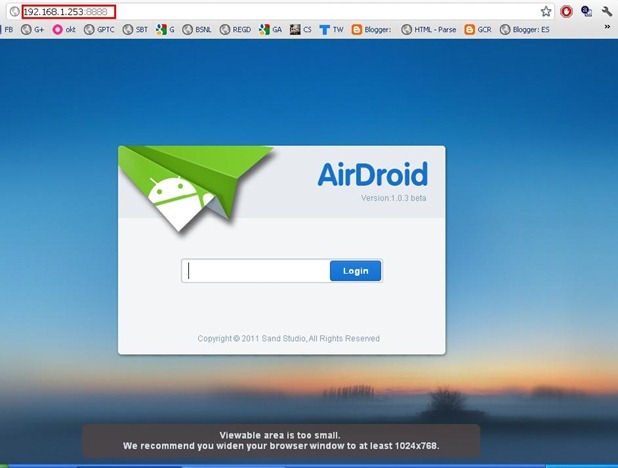
2. After installing Airdroid on your device simply navigate to it and Run it and you will see something like what you can see on the right hand side. This is the simple interface of Airdroid with a URL field and the password field.
3. So now you have successfully installed and using Airdroid on your Android device so its time to make it Run on your Windows PC, now simply fire up your computer as we are going to need a Web Browser to enter that URL and password and make a successful wireless remote connection between Device and Web Browser.
4. Now after firing up web browser enter the URL you see in your Airdroid Device App in your web browsers field like below .:
How to Control Android Phone from PC Web Browser
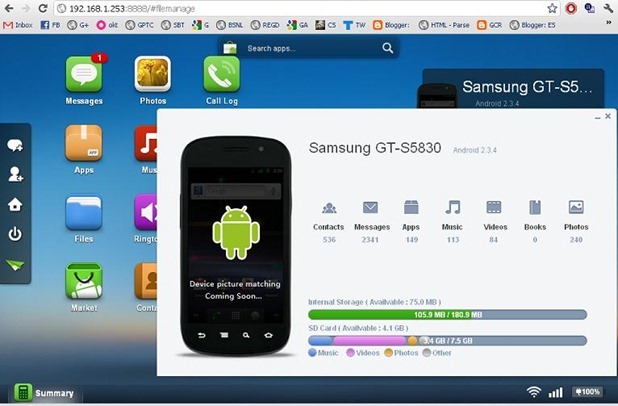
5. So now you have entered the URL and as soon as you press enter you will promoted to enter the password you see on your device under the URL field enter that password like above image and you will up and running Android on your PC like below .:
How to Control Android Phone from PC Web Browser
6. So now its time to just explore every settings or anything for your Android Device from your desktops web browser

Read More

Sunday, 3 June 2012

Run Android Apps In WIndows

| |
0 comments
Is it possible to play all android apps in PC???
Yes, you can play it in your own pc!!!
But now this is a whole new trick without Installing ANDROID OS...


THEN JUST DOWNLOAD THE APP BLUESTACKS APP PLAYER FROM THE LINK BELOW & TRY IT OUT..!!


Read More

Tuesday, 8 May 2012

ANDROID MOBILE TRICKS------

| |
0 comments


 Android Mobile tricks :
Cell Battery, WiFi Usage etc Info *#*#4636#*#*
Restore Factory Settings
*#*#7780#*#*
Format Phone
*2767*3855#
Launch service mode *#*#197328640#*

#*
Test WiFi
*#*#232339#*#* or
*#*#526#*#* or
*#*#528#*#*
Display WiFi MAC address *#*#232338#*#*
GPS test
*#*#1472365#*#*
Other GPS test
*#*#1575#*#*
Bluetooth test *#*#232331#*#*
Display Bluetooth physic address
*#*#232337#*#
Start Gtalk monitoring
*#*#8255#*#* 
PDA, Phone, H/
W, RFCallDate *#*#4986*2650468#*#*
PDA and Phone
*#*#1234#*#*
FTA SW version
*#*#1111#*#*
FTA HW version *#*#2222#*#*
PDA, Phone, csc,
*#*#44336#*#*
Packet Loopback
*#*#0283#*#*
LCD test *#*#0*#*#*
Melody test
*#*#0673#*#*
or
*#*#0289#*#*
Device test such as vibration and lightness
*#*#0842#*#*
Display touchscreen version
*#*#2663#*#*
Touchscreen test
*#*#2664#*#* Distance sensor test *#*#0588#*#*
Display memory version
*#*#3264#*#*
Read More

Social Profiles

Animated Social Gadget - Blogger And Wordpress Tips